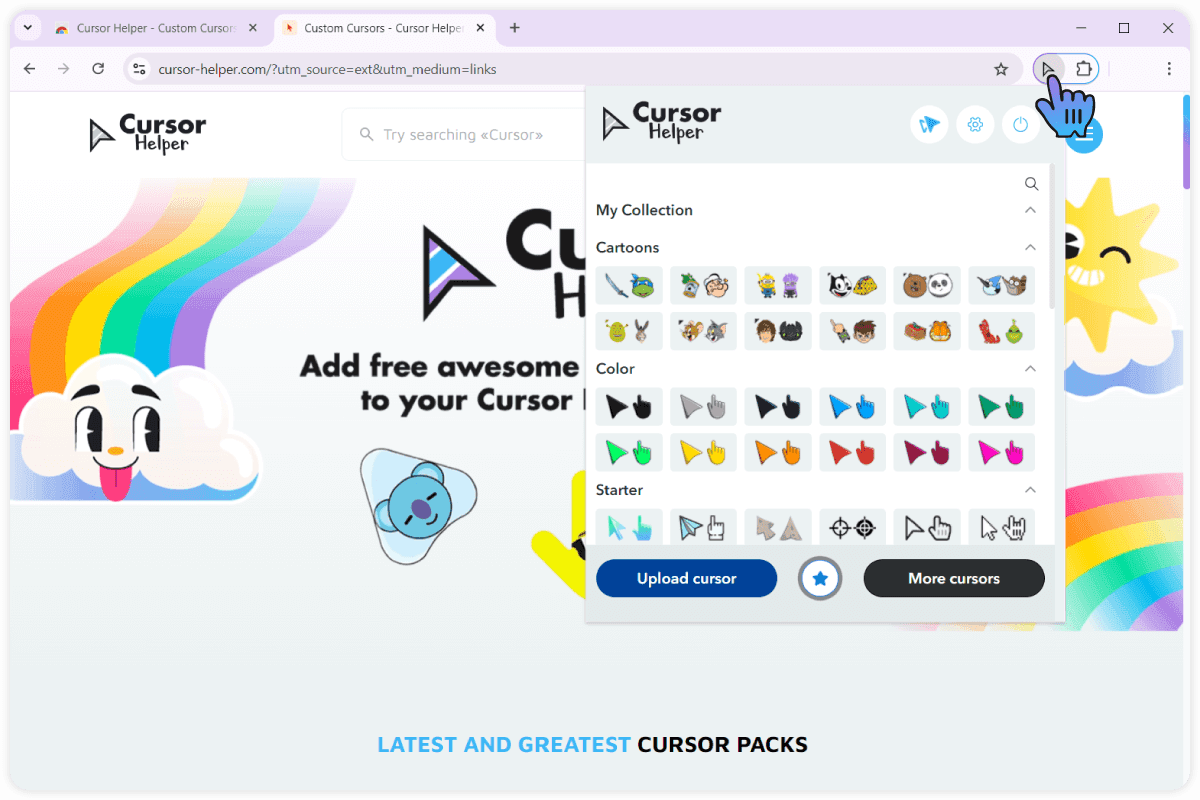
- bread-crumbs.how-to-use
HOW TO USE FOR CHROME
Here you will find answers to the most popular questions about installing and using the site and the extension. Didn't find the answer to your question? Contact us.
How to install Cursor Helper?

How to use Cursor Helper?

How to use Constructor ?
How to use Cursor Helper Creator tool?
How to manage your cursor?
How to download cursors from site?
How to rate Cursor Helper?
How to install Cursor Helper?
11. Open your web browser (for example, Google Chrome).

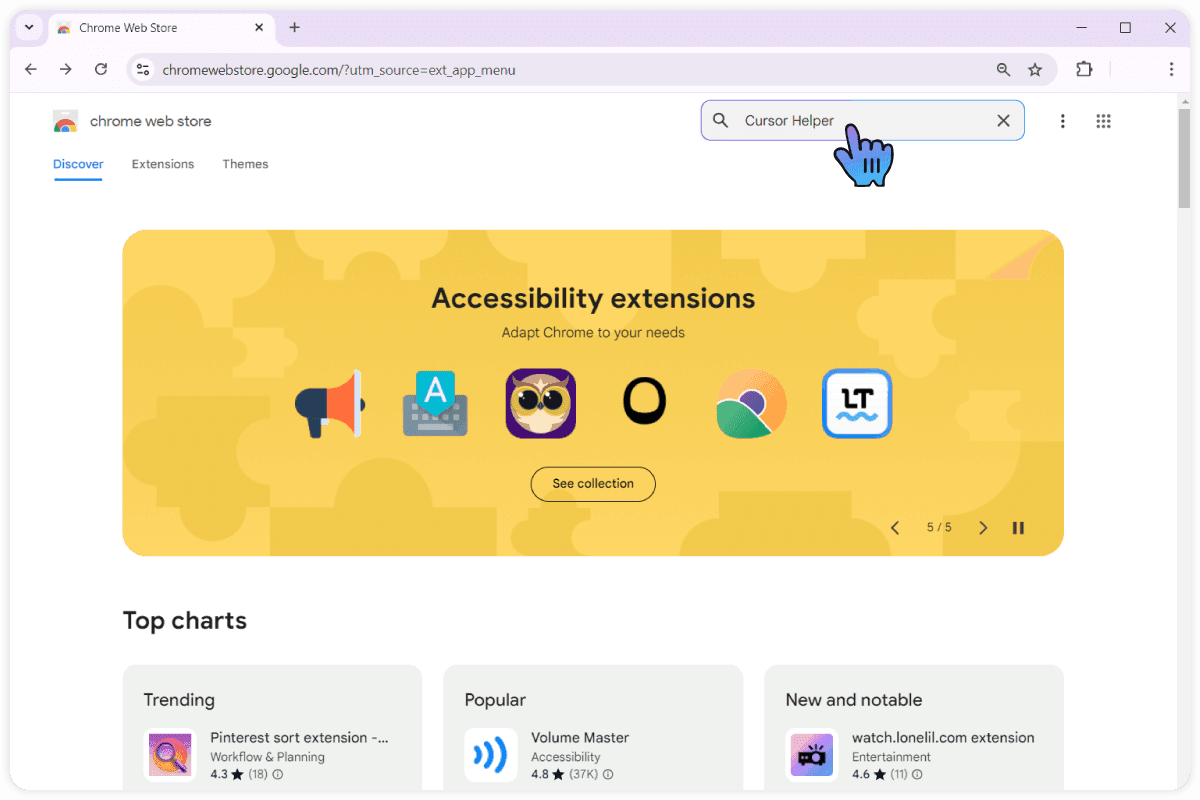
22. Navigate to your browser's extension store.

33. In the search field, type «Cursor Helper» and press the 'Enter' key.
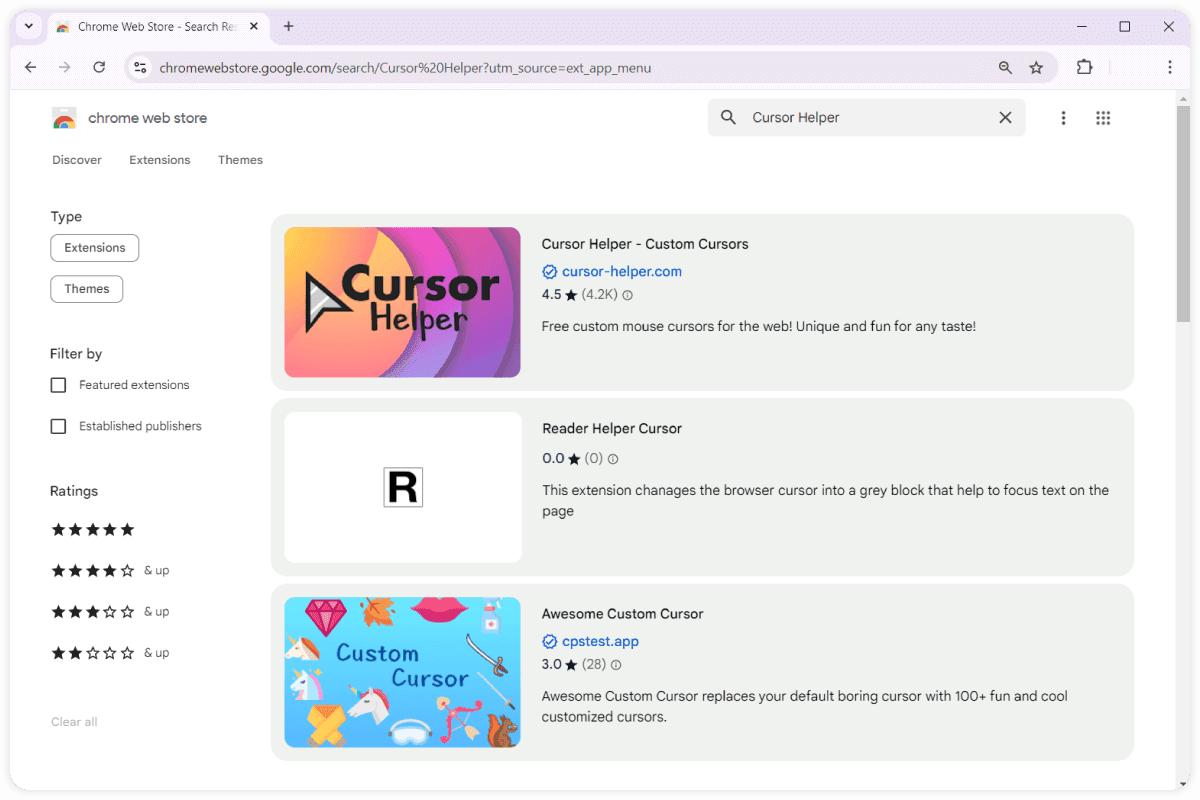
44. Find the «Cursor Helper» extension in the search results.
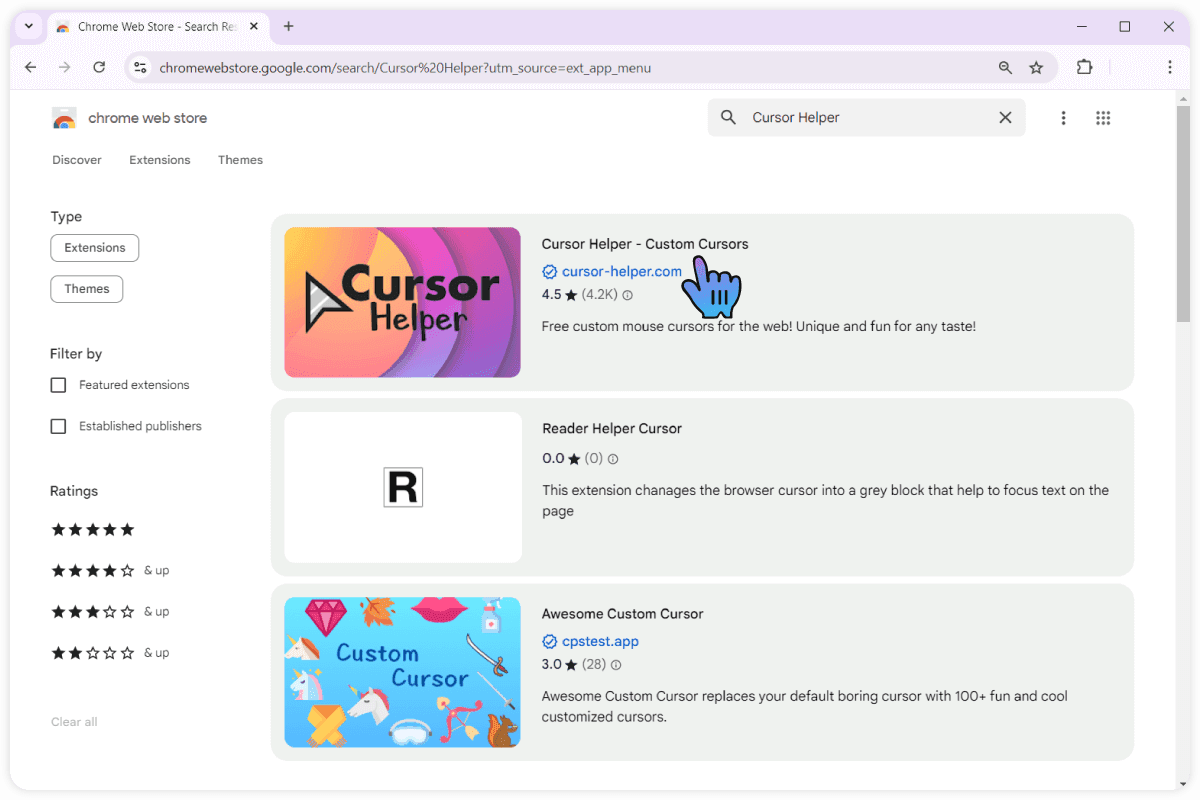
55. Click on it to go to the extension's page.
66. On the extension page, click the 'Install' or 'Add to Chrome' button.
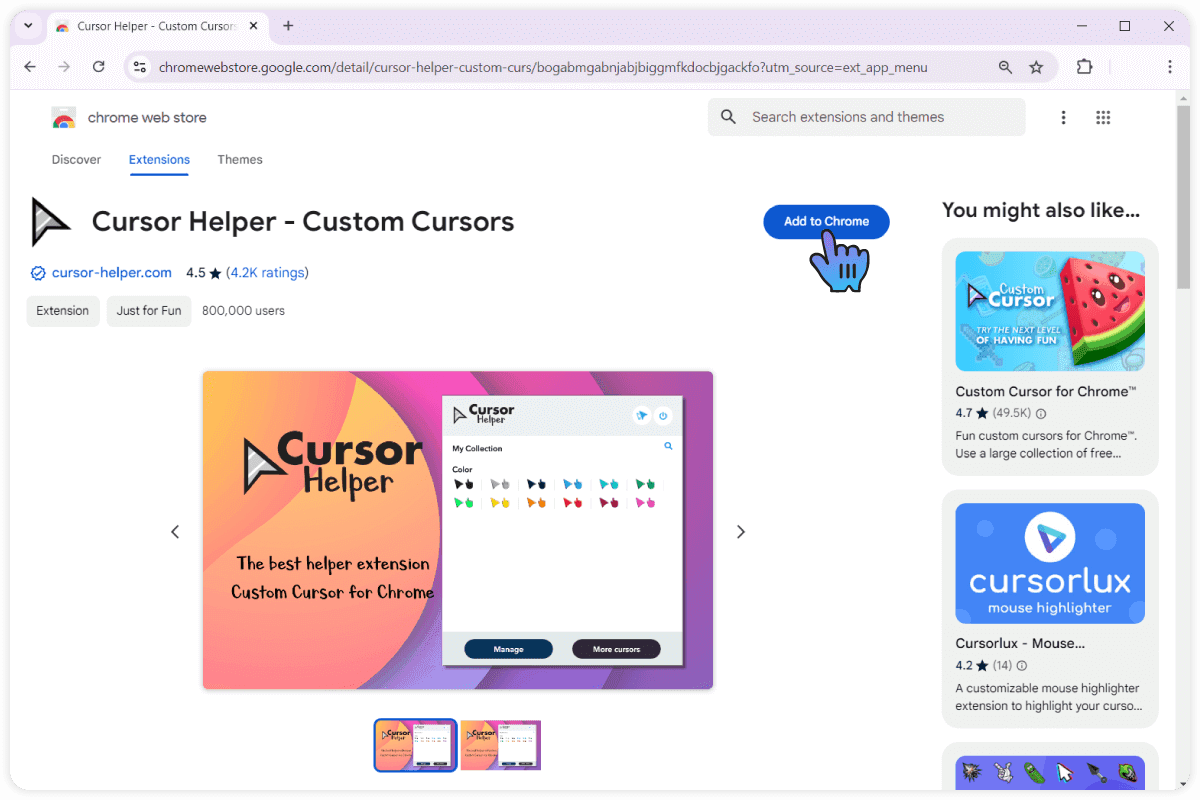
77. After the extension is downloaded, it will automatically install in your browser.

88. Reload the page or open a new tab to start using the new features of «Cursor Helper».