- How to use Cursor Helper?
How to Use Cursor Helper - Custom Cursors Guide
Learn how to use the Cursor Helper extension to apply custom cursors in your browser. Step-by-step guide to install, customize, and switch between unique cursor styles.
1
1. Cursor Helper menu
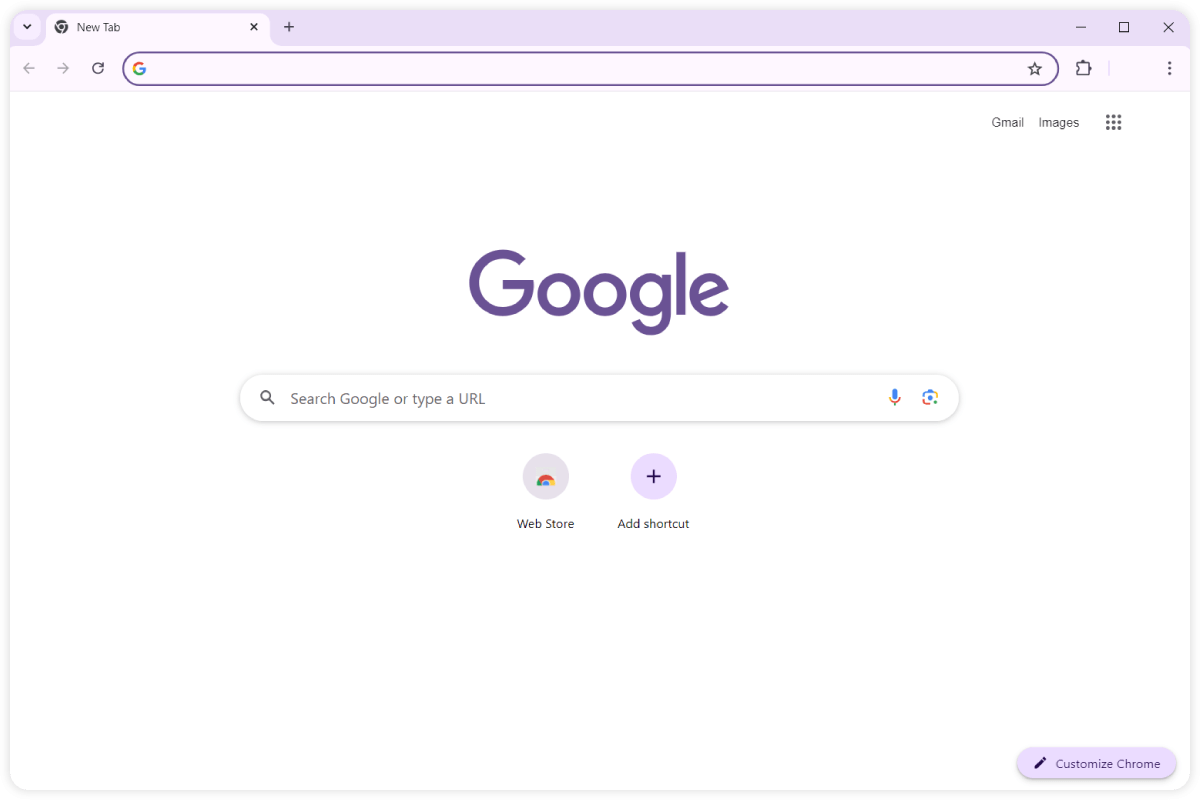
To activate the Cursor Helper extension click on its icon located in the Chrome toolbar.The pop-up window will appear.
2
2. Setting the cursor
Go to the Cursor Helper pop-up window, scroll down and choose the desired cursor pack and click on it.Same way you can pick another cursor when you have played enough with the first one.Be sure to try it anywhere except for Chrome Web Store, browsers inner pages and Homepage.
3
3. Changing the animation
To change the size of your cursor go to Cursor Helper pop-up window.Click 'Change Size' button located in the top bar of the pop-up window and use the scrollbar to set the desired size.
4
4. Disabling Cursor Helper
To return the default go to Cursor Helper pop-up window. You might need to reload the tab where the cursor is showing because of the browser cache.